
Planning EV Road Trips With the myCadillac App’s Range Map and Route Planner
September 14 2026,
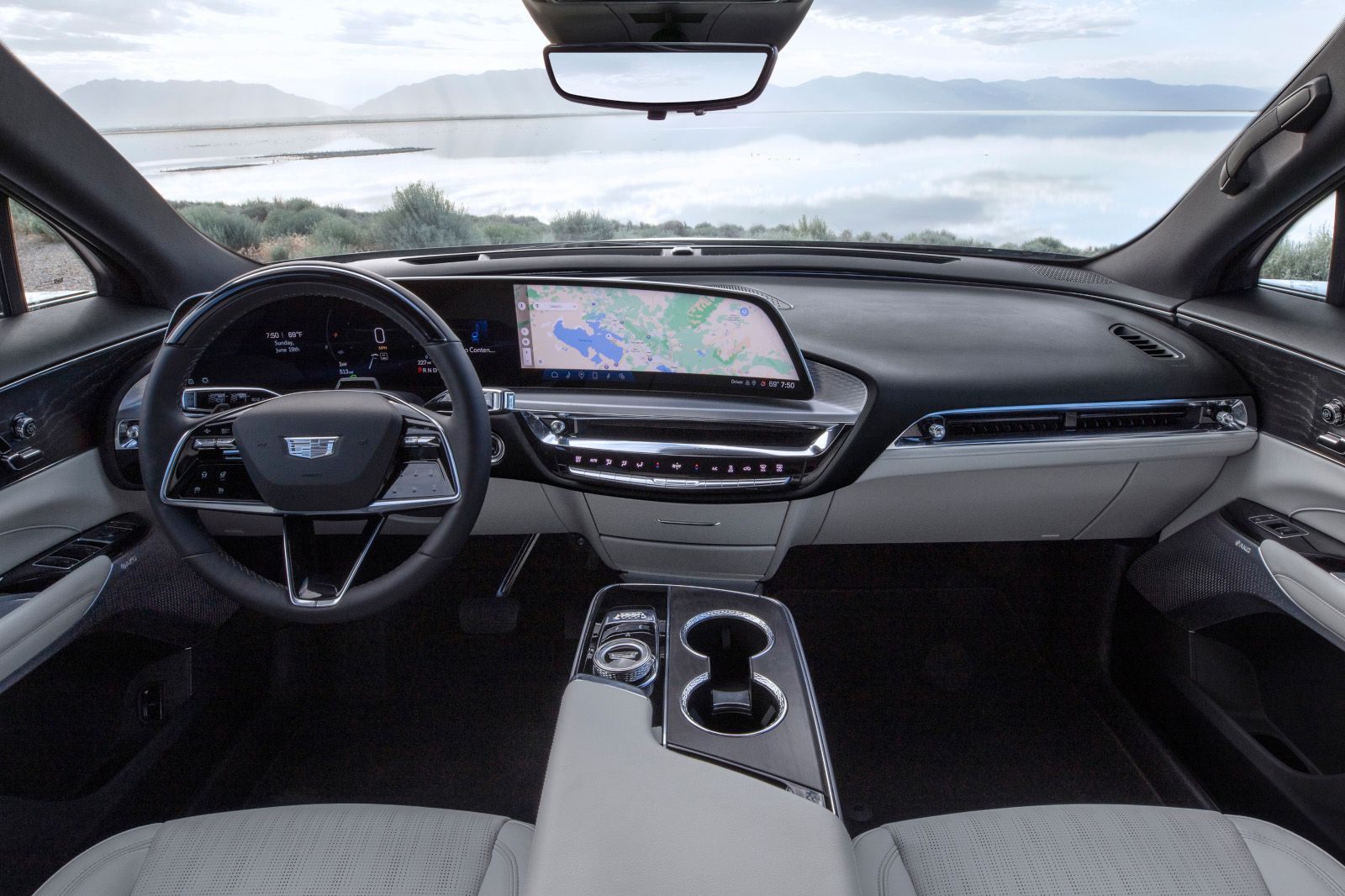
Planning a road trip in an EV means thinking about range before you think about scenery. If you drive a Cadillac EV in Quebec, the myCadillac app is built to answer the range question before you even leave the driveway.
This guide walks through what the app actually does for trip planning, not just remote start or door locks, so you can use it with confidence on your next drive.
What The MyCadillac App Does For Ev Owners
The myCadillac app gives compatible Cadillac EV owners tools for charge monitoring, route planning, and charging-station search, all from a phone. Available features vary by vehicle, device, and the service plan you’re enrolled in.
The Home screen’s My Vehicle tab shows an at-a-glance charge status. From there, the Map icon opens the range view, station search, and route planning tools in one place.
During initial setup, you can add home and work locations. Doing this early makes the range map and alerts more useful right away, rather than after a trip is already underway.
How The Range Map And Route Planner Work
Tapping Explore Range shows a dotted line on the map marking how far you can travel and still make it back on your current charge. It’s a visual answer to “can I get there and home again?”
If you drive outside the range of your home charging location, the app displays an alert. That’s a useful check before a longer trip, not just a warning after the fact.
For charging stops, the Map screen’s Places or Stations tab lets you search near your current location or search a different destination city entirely, which matters for anyone planning a trip beyond their usual routes. Tap the Slider icon to filter results by charging provider, station type, charging power, and plug-and-charge capability. Station details include availability, user reviews, and images, so you can judge a stop before you commit to it.
Once you’ve searched a destination or charging station, tapping Plan Route hands off to Apple CarPlay or Android Auto, if your vehicle supports it and is connected. From there you can adjust trip settings, including your charge plan and a Return Home addition, then tap Start Driving to monitor the route.
|
App Area |
What It Shows |
|
Home screen / My Vehicle tab |
Charge level (%), range (km), plugged-in and charging status |
|
Charge status page |
Charger type, location charge settings, charging alerts |
|
Map / Explore Range |
Reachable-and-returnable range as a dotted line, with an out-of-range alert |
|
Map / Stations |
Charging stations near you or at a destination, filterable by provider, type, power, and plug-and-charge |
Why This Matters Before And During A Drive

Checking charge status before you leave helps you decide whether to top up first or head out as-is. The home screen tile shows charge percentage, range in kilometres, and whether the vehicle is plugged in, unplugged, or actively charging.
Tapping that tile opens a deeper charge-status page with the charger type in use, your location’s charge settings, and any charging alerts, like a plug-in reminder or an interrupted session. If a charge is scheduled, the app shows an estimated completion time, which is useful when you’re timing a departure around a full charge.
During the trip, having the route, charge plan, and a Return Home option adjusted in one screen means fewer surprises about whether a charging stop is actually necessary.
Getting Public Charging Ready Before You Go
A route plan is only as good as your ability to actually charge along the way. Before a trip, activate the public-charging networks you expect to use under Supported Networks in the app’s Public Charging screen.
Two ways exist to start a charging session. Plug and Charge lets you insert the cable at a compatible DC fast charger and have the session start automatically, after a one-time activation and a linked payment method. Charge-by-App lets you remotely start a session on a compatible Level 2 or DC fast charger through the app itself.
Some vehicles need a compatible NACS DC adapter, or another approved adapter, to use certain public networks or charger types. Confirming this ahead of a trip avoids finding out at the charger.
Who Gets The Most Out Of This
Drivers who regularly go beyond their everyday charging setup benefit most from setting up the range map and home/work locations in advance, since the out-of-range alert is only useful once that baseline exists. For a Quebec winter, cold weather affects EV range, so checking the range map before a longer trip is worth the extra minute.
Before heading out: open the app, review your range, search charging stops along or near your route, plan the route, and confirm your public-charging accounts are active. That order keeps the trip from stalling at a charger you weren’t ready to use.
Planning Your Next Cadillac Ev Road Trip
The myCadillac app brings range visibility, charging-station search, and route planning into one tool, so a road trip in a Cadillac EV starts with a plan instead of guesswork.
Visit Mont-Royal Cadillac in Montréal to see the myCadillac app’s route planning and charging setup demonstrated on a compatible EV, and to confirm which networks and adapters apply to your vehicle.